 Bardioc User Guides


Table of Contents
This guide contains all the essential information for Knowledge Experts to teach Bardioc™ how to automate knowledge described by SMEs most efficiently. It provides an overview of the Bardioc™ world, direction on how to interact with Bardioc™ for best results, and hints and tips on navigating the user interface.
1. Introduction
1.1 What Is Bardioc™?
Bardioc™ is an automation tool based on artificial intelligence, created by Almato. It can be used to automate both IT and business processes, enabling companies to utilise time and resources effectively.
Knowledge is taught to Bardioc™ in small pieces that contain the context in which they can be used. Then, when a Task is assigned to Bardioc™, it will try to solve it by recombining all the knowledge it’s been previously-taught based on the Task context at each given point in time. This means that Bardioc™ doesn’t learn in strict workflows like, for example, scripts. Instead, it will create a workflow in real time as it evaluates the Task context and, based on that, decides on the Steps to take, on the fly.
1.2 How It Works
Bardioc™ integrates into your environment in order to receive Tasks, the same way that you do! For example, these may be in the form of ITSM Tickets that are assigned to you, or submitting of forms, even e-mails. Integration is the first step because these Tasks will now all be "delegated" to Bardioc™, and only when Bardioc™ can’t solve it, it will go to the Subject Matter Expert (SME).
A simple look at the process is as follows:
-
Ticket/Task is assigned to SME
-
SME sees what Bardioc™ has already done and determines which steps are missing from the solution
-
SME solves the Ticket manually
-
They locate the Ticket in Bardioc™ Tasklist and press Start Teaching (This is the same when a Knowledge Expert wishes to teach Bardioc™ directly)
-
SME explains all the steps they took to Bardioc™ Chatbot in natural human language and hands it over to Knowledge Experts
-
A Knowledge Expert selects chat from their Tasklist view and converts it to code that Bardioc™ understands7.
-
Next time Task occurs, Bardioc™ will use this knowledge to solve the Ticket autonomously

Teaching Bardioc™ is made simple with the help of a chatbot, which will guide the knowledge transfer by asking the SME questions regarding the Task solution. Once they complete and hand over the chat, it’s then available to all Knowledge Experts of the same team in the Tasklist app.

1.3 Bardioc™ Modes and Workflow
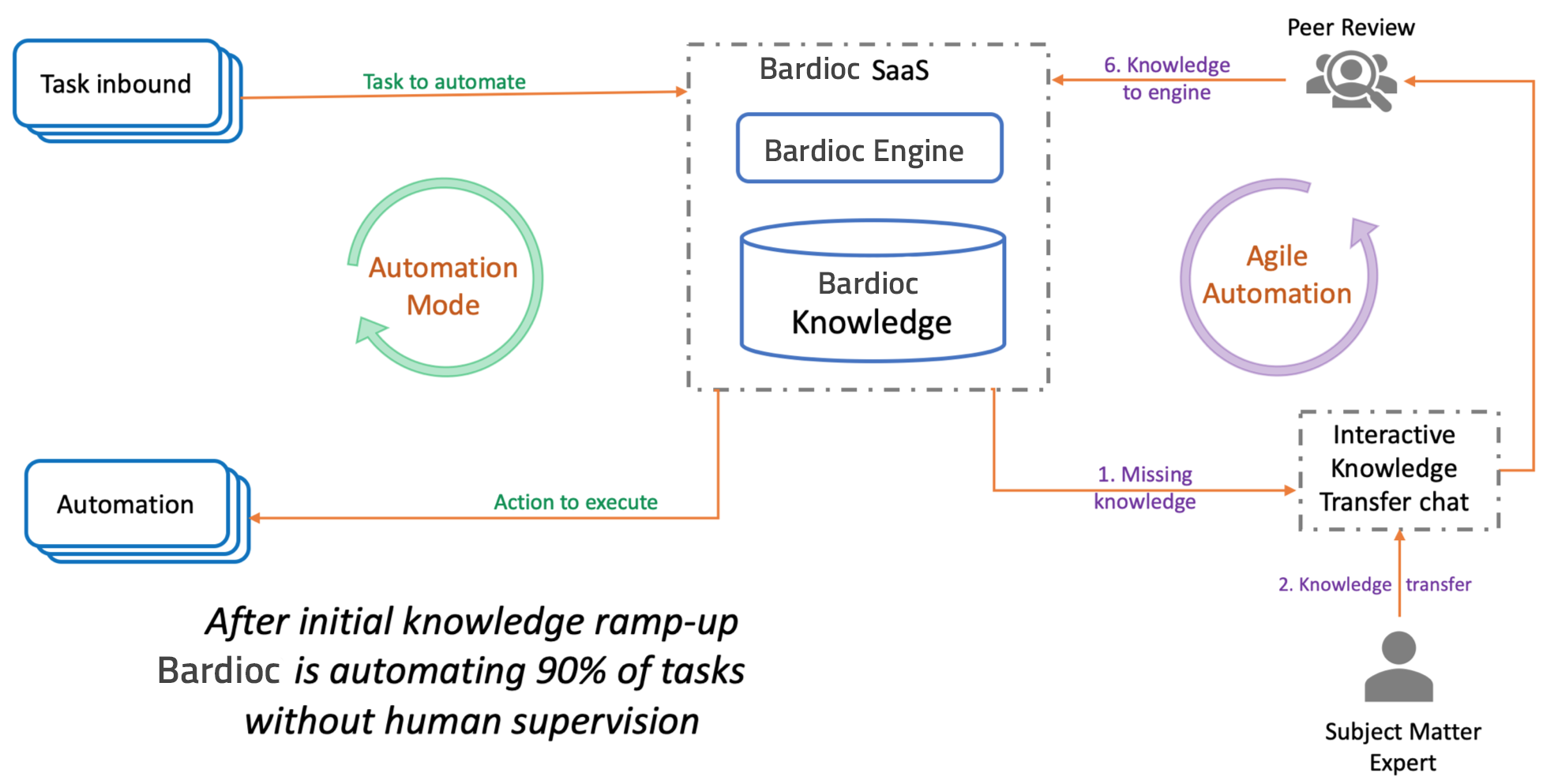
Bardioc™ is always working in the background, whether that be carrying out tasks, or learning how to automate new ones. This can be seen in the two modes Bardioc™ works in:
- The Automatic Execution Mode
-
Bardioc™ solves tasks automatically by applying pre-existing knowledge.
- The Agile Automation Mode
-
Bardioc™ gets taught new knowledge to automate new tasks in an agile manner.
1.2 The Workflow
Primarily, Bardioc™ needs to understand the environment that it will automate in, including which tasks can occur there. These can both be extended as the scope grows, but to start off one should select an end to end process to automate, and define which tasks can occur there and their triggers.
Triggers will be defined for each problem type, and an Automation Task will be created in Bardioc™ every time a trigger is detected. In the Automatic Execution Mode, Bardioc™ tries to solve each task by applying existing knowledge that it will have been taught previously.
If the knowledge present is not sufficient for a specific task, Bardioc™ will request to be taught new knowledge in the Agile Automation Mode, so that it can solve the task automatically the next time a similar trigger occurs.
1.3 User Roles
Automating with Bardioc™ entails indirectly collaborating with various team members that will each use Bardioc™ differently. For this purpose, Almato has created some User Roles to better separate responsibilities, processes for hand-over, and allow for the user interface and training content to be better catered to each role.
1.3.1 Bardioc™ Developer (Dev)
A Bardioc™ Developer is responsible for creating and configuring the Action Handlers and Connectors planned in the Solution Design phase. They are familiar with the source and target systems, and the available Bardioc™ APIs.
1.3.2 Subject Matter Expert (SME)
Experts who will teach Bardioc™ how to automate processes they are knowledgeable on through a chat conversation where they answer some questions regarding said processes and tasks within them.
1.3.3 Knowledge Expert (KE)
This role will be given to users who understand how Bardioc™ works, and can edit Bardioc™'s automatically generated code to ensure it has translated content from an SME’s chat conversation correctly into KIs.
1.3.4 Admin
This role will be given to users who understand how Bardioc™ works, permissions required for each user, and how to configure this using Bardioc™ User Interface.
1.4 Where Do I Fit In
Once a business process has been selected for automation, a Business Analyst will design the automated solution for the tasks within that business process and how they will be transferred into Bardioc™. They will also define which external systems need to be connected to Bardioc™ and what content is needed from each.
These designs will be communicated to a Developer who will create the necessary Connectors and Action Handlers which will import data into Bardioc™ for automation, and define how Bardioc™ interacts with external systems.
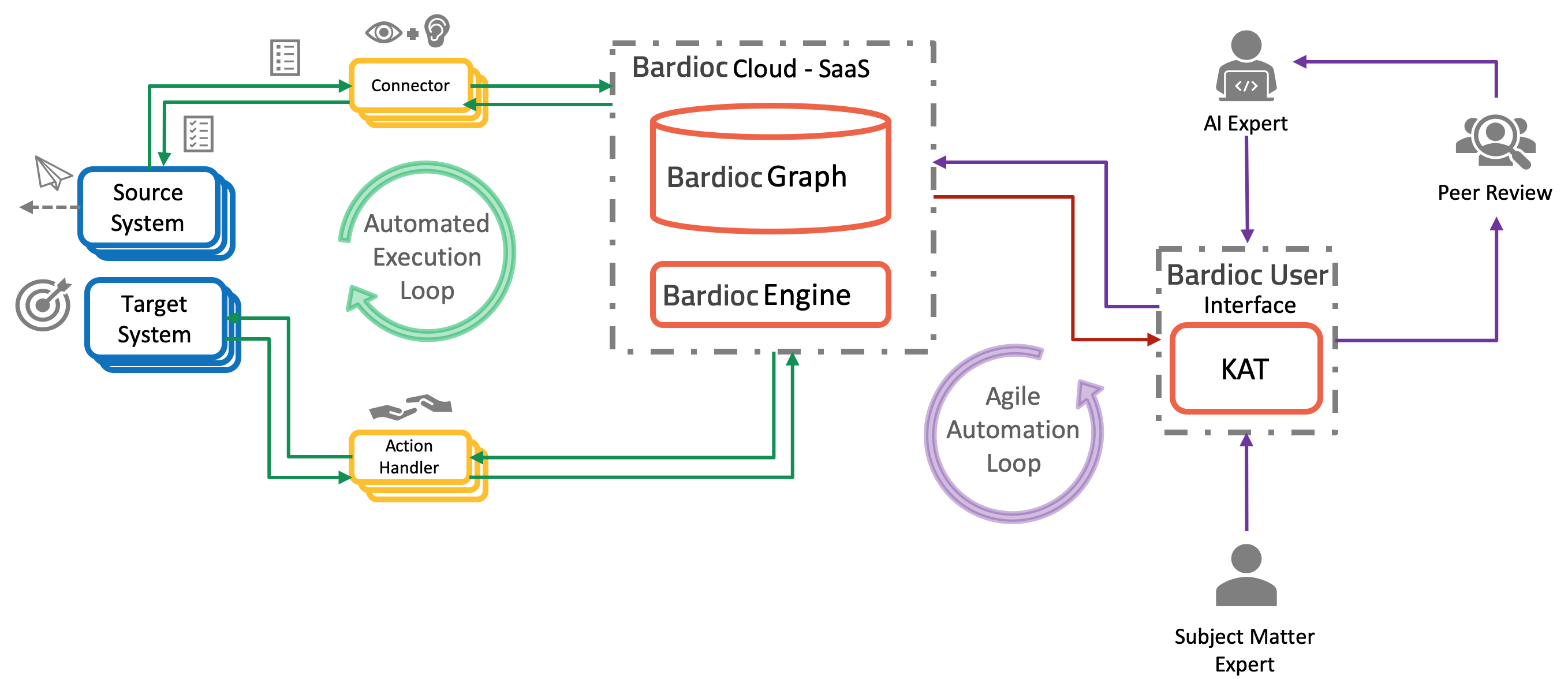
Once the integration phase is complete, the Connectors will pick up any triggers that were defined to start an automation task, and push this information into Bardioc™. Bardioc™ then tries to solve said task with existing knowledge. If there is no knowledge applicable to the task at hand, the Connector should pick up on this, and inform the relevant Subject Matter Expert, who will complete the task manually.
After manual resolution, this knowledge needs to be taught to Bardioc™ for next time the same issue occurs. In this case, the automation task that was not able to be solved by Bardioc™ appears in the user interface listed in the Tasklist app. This is where the SME would need to locate it and start teaching the Bardioc™ Chatbot when they’re redirected to the Knowledge Acquisition Tool.
Through the chat conversation, Bardioc™ understands the steps and translates it into code that is used for automation. These steps are called Knowledge Items and for the process to be complete, a Knowledge Expert would need to peer review Bardioc™'s translation and edit where needed, before deploying all the new knowledge so that Bardioc™ can solve the problem itself next time it occurs.
2. Getting Started
2.1 Knowledge Expert User Journey
This User Guide will look at the workflow only from a Knowledge Expert’s perspective.
When Bardioc™ can’t solve a Task, it means there’s missing knowledge. In this case, the Task will be handed over to a Subject Matter Expert (SME) and they will solve it manually. Lastly, the SME will teach Bardioc™ how to solve Tasks like this in the future. The way they do that is by talking to a chatbot and answering questions to further define the knowledge being transferred.
SMEs will teach Bardioc™ what they did in so called Steps. Each Step will be translated by Bardioc™ into Knowledge Items(KIs), which is what Bardioc™ uses to carry out actions and automate solutions. These KIs are generated based on the SME’s input, and Bardioc™'s understanding of it. Throughout the chat, Bardioc™ does check in with the SME on whether it understood correctly or not, but sometimes it requires a little extra teaching from a Knowledge Expert.
This means that a Knowledge Expert should know how to create KIs as they’re, in essence, peer reviewing Bardioc™'s translation of natural language. By answering chatbot questions, the SME should have provided all the details necessary for a Step to be carried out, such as where it can be applied, under what conditions, and exactly how to carry out the action itself. This information can be mapped to the 3 parts of a Knowledge Item: On, When, Do.

It’s the Knowledge Expert’s job to verify that Bardioc™'s automatically generated code, does what the SME has described in the chat. Once this is done for each Step, the Knowledge Expert can request reviews from their colleagues to confirm the correctness of the new KIs. Then, they can be deployed into Bardioc™, and the next time this Task needs to be carried out, Bardioc™ can take care of it automatically.
2.2 Peer Review
2.2.1. Teaching Session Owner
Once a Teaching Session is complete a Knowledge Expert can request a peer review from another colleague as a way of confirming their conversion, that all details are included, and that best practice is followed. Reviewers can be added by clicking on the icon at the top right of the screen in KAT, and typing in the names of the colleagues who will review and press OK.

Then, the Reviewer is notified, and their comments will be visible in the screen on the right, and the Teaching Session owner can choose to reply to the reviewer comments, make the suggested changes and resolve the comments, filter, sort,edit, delete etc.

When a user replies to a comment, they have the option of tagging someone by using the "@" symbol and then their name. This will show up to the person who was tagged as a notification and a comment pending reply. When the owner of a session changes something that a comment by the reviewer is referring to, that comment is then marked as "outdated" and can be filtered out by clicking the icon at the top right, and unchecking the box. Here one can also sort the comments in the order they prefer.

2.2.2 Reviewer
When a Teaching Session has been assigned to a Knowledge Expert to review, they will receive a notification by Bardioc™, and it will appear on their Bardioc™ Dashboard. First the number will change at the "Tasks to be Reviewed" counter, and the Teaching Session will also be available at the top of their Task List. Once they click to start, they’re taken to KAT, in "Review Mode". This can be seen at the top right, next to the Teaching Session name, there will be a title "Review Mode", and also the colour scheme is different to that of SME view and Knowledge Expert view.

This KAT also has a comments pane on the right hand side of the screen. Here, a reviewer can add general comments about the Teaching Session. They can also add comments by clicking on the speech bubble icon wherever available (please see list below) if they wish to be more specific about their review point.
A Reviewer can comment on:
-
The Teaching Session as a whole
-
A specific Step
-
A specific KI
-
Specific lines of KI code
When there’s multiple reviewers, one can distinguish who they’re referring to by tagging someone in a comment. This can be done simply using the "@" symbol and then their name. This will show up to the person who was tagged as a notification and a comment pending reply.
There are two sides to reviewing a Teaching Session. The first is confirming that the expert knowledge that is being taught to Bardioc™ is converted correctly and is complete. The second is, ensuring that best practice is followed everywhere. This can be done with the help of checklists and best practice which can be gained through training and experience.
When the owner of a session changes something that a comment by the reviewer is referring to, that comment is then marked as "outdated" and can be filtered out by clicking the icon at the top right, and unchecking the box. Here one can also sort the comments in the order they prefer.
3. Bardioc™ Tools for Knowledge Experts
3.1 Bardioc™ Desktop
The user interface for Bardioc™ is called Bardioc™ Dashboard and it contains information regarding the relevant Bardioc™ instance such as the Tasks that are still open and need teaching or converting and Tasks that the user has left incomplete. On the top right it shows the statistics about the instance such as the automation rate, and the number of tasks that the user has automated, along with the number of Knowledge Items created. In the view on the bottom right a user can have a closer look at their knowledge Items filtered by mode - validation, undeployed, or live.

From here we also get access to different apps which allow a user to interact with Bardioc™ and automate their tasks. There are 3 types of user roles one can have in Desktop, based on how they are expected to teach the tool:
-
SMEs: who will teach Bardioc™ how to automate their tasks using a chatbot
-
Knowledge Expert: who will peer review Bardioc™ automatically generated code, which is based on SME chat conversations
-
Admin: who will configure Bardioc™ instances to match all member requirements, permissions and password resets.
so it’s best to check that the right permissions have been granted before continuing. This can be done by clicking on the Profile icon on the top right, and seeing the User Role in the View Profile section, as shown below.
3.2 Tasklist
The Tasklist is a "ToDo list" for both SMEs and Knowledge Experts. Depending on the role, different filters and views are available. Start Teaching, Start Conversion, View Teaching take the user to the Knowledge Acquisition Tool where they can teach Bardioc™ the steps needed to resolve an Automation Task.

Knowledge Experts can find all sessions that have been handed over by SMEs in their own ToDo List. Knowledge Experts can also view conversion tasks created by their colleagues, and can start a teaching just like the SME would do. These teaching sessions, however, are considered handed over and start with the Structure View in KAT.
Knowledge Expert Filters
The filters in the Tasklist are shown all by default. The meaning for each can be found below.
-
My Conversion Tasks:
Teaching Session handed over by SMEs and that the Knowledge Expert themselves has already began converting. -
My Knowledge Tasks:
Teaching Session that have not had any SME input, but the Knowledge Expert has taken over to teach Bardioc™ the steps directly using KIs. -
My Teams Tasks:
Filtered by users in the same organisation -
Archived Tasks:
Listing all archived tasks. (Archiving can be done using the 3 dots at the end of a row. Once archived they can be restored.) -
My Review Tasks:
All of the Tasks that the Knowledge Expert has requested peer review for. -
My New Review Tasks:
All of the Tasks that peers have assigned to the Knowledge Expert for review and they have note yet begun. -
New Conversion Tasks:
Teaching Session handed over by SMEs -
New Knowledge Tasks:
Knowledge Experts can also start a teaching session, here is where they’ll be able to see Teaching Sessions not started by an SME. In these Teaching Sessions, however, the Knowledge Expert is taken straight to structure / code view and the session is considered handed over.
3.3 Knowledge Acquisition Tool (KAT)
The Knowledge Acquisition Tool is how knowledge gets inserted into Bardioc™. The SME will do this by talking to a chatbot, so their KAT user interface looks different to that of an Knowledge Expert’s. The steps described by the SME during the chat conversation will be visible in KAT, in the Chat View where the Knowledge Expert has read rights.
They can edit Steps in the Structure View, and it’s recommended that this is done in natural language. From there, the Knowledge Expert can choose to browse through existing knowledge in case the SME’s description matches that of a pre-existing KI and can be reused, or they can have Bardioc™ automatically generate a new KI based on the chat conversation and this way grow their knowledge pool.
This KI will appear in the Code View and the code itself can then be edited there. From here onwards, an Knowledge Expert must review Variables used, conditions, and the action a KI should carry out. Once this is complete, they can deploy the Knowledge Item, and Bardioc™ will then be able to solve tasks like this automatically in the future.
When generating a new KI, Bardioc™ tries to map content from the natural language to existing variables, which is the "vocabulary" Bardioc™ uses. The Knowledge Expert can edit this mapping or even create new ones. The logic behind the mapping suggestions is indicated on the screen in the form of coloured, straight and dotted underlining of the words the SME used to describe a step. Each indicator is explained below:

-
Dotted line
Bardioc™ was able to match to an existing variable -
Red line
Bardioc™ wasn’t able to understand the user input -
Blue line
Bardioc™s suggestion was overwritten by the user or a new definition was added
3.4 Knowledge Item Management Tool (KIM)
KIM allows users to browse all knowledge that has been created within their environment. A Knowledge Expert can filter for deployed (available to the engine), KIs in "Validation mode", undeployed, or incomplete KIs. From here, a user can select a KI and then go to the teaching session where that specific KI was created in KAT.

The KI statuses are shown at the end of each line with corresponding icons.
-
Green tick in a circle
KI is available to the engine for use. -
Empty circle
KI is not available to the engine for use. It is currently "Undeployed" so it will not be considered during automation. -
Chemistry icon (beaker)
KI is in "Validation Mode". This means that the Knowledge Item will be considered during automation, but will not actually be applied. Instead, while a KI is in this mode, Bardioc™ will log all the times that a Task matched the conditions of this KI, meaning (had it been Live) it would have been triggered when this Task occured. The details of the Validation statistics can be seen in more detail below. -
Red warning sign
KI is syntaxtually incorrect.
By clicking on a KI in the list one can get a closer look at the KI, its statistics, they can edit it, or change the KIs state all from the view in the right hand side. The first view shows the KI code and offers 2 buttons. The "View in Knowledge Acquisition Tool" button will take the user to the Teaching Session in which this particular version of the KI was created. If this Teaching Session belongs to them, they can also edit the KI contents.
The second button is a dropdown list with KI states. If the user owns the KI, they can choose to change its state by deploying to "Live", "Validation Mode", or undeploying altogether.

Validation Mode is a state in which the KI is considered during automation but not applied. So, all Tasks that come in will also check if this particular KI can be applied. But it won’t actually get triggered, so the KI won’t run any actions while in this mode, it will simply log all the times that it could have run. This is useful for validating that the KI’s conditions are correct. The engine stores all the logs of when this KI would have run on a Task in the second tab of the right hand view - the "Validation Statistics" tab.
In the "Validation Statistics" tab a user can see all the times that a Task occured which would have triggered the specific KI, had it been in "Live" mode. One can select the range they wish to see from the statistics (last 24 hours, 3 days, months etc.) and here is also where they are shown the Tasks and given the option to have a closer look at each Task for further inspection by opening it in "Task Inspector" (please see following section)

Similarly, this view also offers a tab with "Live Statistics", which allows the user to see all of the Tasks that a KI has run on. They can also have a closer look at the Task history and view at which point exactly the KI was applied by opening the Task in Task Inspector. Lastly, the top right corner of a KI shows the KI versions. During the creation and editing of KIs, new versions are saved and are then accessible through KAT.

3.5 Task Inspector
The Task Inspector is where a Knowledge Expert can have a closer look at what Tasks have entered into Bardioc™, their status, and which steps (KIs) they have triggered.

After selecting a Task from the list, one can see which steps were taken and when, the findings of executed KIs, the changes that KIs made to the Task and, and where exactly in the environment those steps were taken.

For each Task, the Task Timeline will show the full list of KIs applied, and the environment Nodes they were applied in. After clicking on a KI on that list, one can find more details in the following views:
-
Task Content Display
Here one can find the contents of the Task at the point in time where the KI was applied. The Task is in JSON format, and the highlighting allows us to see which Variables were deleted (red), or added (green). If a Variable was updated, the original value will appear in red - as it’s being deleted, and the new value will appear in a different line in green. -
Knowledge Item
The code view of the Knowledge Item that was selected from the Task Timeline, can be found in the Knowledge Item view. From here, one can have a closer look into the KI’s conditions to understand why it was triggered, and get a better view of what it was designed to do. From here, one can also have a closer look into the KI by going to the Knowledge Item Management tool (KIM). -
Current Node
The Task will originate on a certain environment Node, and knowledge will be applied to it there, if that knowledge is not sufficient to resolve said task, the Task will traverse the Graph moving from one Node to another until it finds the knowledge needed. Here one can look into the contents of the Node (in JSON format) that the Task was in at the selected point in time. -
Engine Log
Here’s where one can see the output of Bardioc™ implicit and explicit logging abilities. It’s useful when one is troubleshooting the outcome of a certain step, or simply see their log messages at that point in time.
(Task Content Display is available by default, the rest will need to be explicitly selected and de-selected from the dropdown list on the top right hand side.)

3.6 Graph Explorer
The Graph Explorer is a browser-base application desined to visualize and interact with data stored in a graph database. It allows users to explore entities(Nodes) and their relationships, view raw data and filter or query specific elements within the graph for better understanding and analysis.
To start using the Graph Explorer, follow this link and use same credentials as for Bardioc desktop.
As a KI writer, understanding the implemented model for your automation cases is essential, as you’ll need to reference specific Nodes within your KIs (ON block).
Exploring Nodes and Attributes
For example, to automate a task on a Windows machine, we create a Node of the type "Machine" with the specific value "Windows" within the Graph. Now, let´s explore how to locate this Node.
-
Selecting a Node Type
-
Use the filter in Graph Explorer to select the type of Node you want to view. Example: Select MARS/Machine and click Apply.
-
The selected Nodes and their properties will appear on the left-hand side.
-

-
Node Properties (Attributes)
Nodes in the Graph are described by their properties (attributes), which fall into three categories:-
Mandatory: Required attributes for the Node.
Example: ogit/MARS/Machine/class. -
Optional: Attributes that add detail but aren’t required.
Example: ogit/Automation/automationState. -
Free: Custom attributes that you can create to describe your entity if predefined attributes are insufficient.
Example: /ExpenseReport (these do not start with ogit/, as they are customer-specific).
-
Note: Attributes starting with "ogit/_" are automatically generated by Bardioc™ when a Node is created.
Example: "ogit/_modified-on": "Tue, 03 Sep 2024 09:33:11 GMT" , "ogit/_graphtype" : "vertex"

Key concepts to learn
-
Ontology: A formal description of knowledge within a domain, including its elements and relationships.
-
Graph Database: Built on a subset of the Ontology, it contains attributes were values tailored to the specific automation case we want to work on.
-
Graph Explorer: A powerful tool for visualizing and exploring data within the Graph Database.
For a full guide on how to query the graph, please check this link
Graph Explorer App in Bardioc Desktop
A limited version of this tool is also accessible from the main Bardioc dashboard. The Graph Explorer App allows you to explore Nodes within your Bardioc instance.

Key Features:
-
Finding Nodes:
-
Search for Nodes by type, scope, or organization, or use the search box to locate a specific Node.
-
-
Access Node Data:
-
Select a Node to access its data.
-
Click "Show OGIT Values" on the right-hand side to view all metadata for the selected Node.
-

-
Graph View:
-
Select "Graph View" to visualize relationships between the selected Node and others in the graph.
-

-
Customizing the Panel View:
-
Use the "Save" icon on the left-hand side module to customize and save the panel view.


-
These customizations are easily accessible via the three-dots icon on the left-hand side.
-

Why Use the Graph Explorer App?
This app is invaluable for checking existing Nodes in your instance. For KI writers, it helps identify the variables you need to use in the ON block, ensuring your KIs are properly bounded and effective.
4. Translating Chat Conversations for KI Creation
4.1 Knowledge Acquisition Through Chat
Bardioc™ Chatbot aims to extract information from an SME regarding the steps to automate a certain task that it was not able to automate before. Which means that, ideally, each teaching session will begin with a Task that has been "stopped" and was not automatically resolvable by Bardioc™.
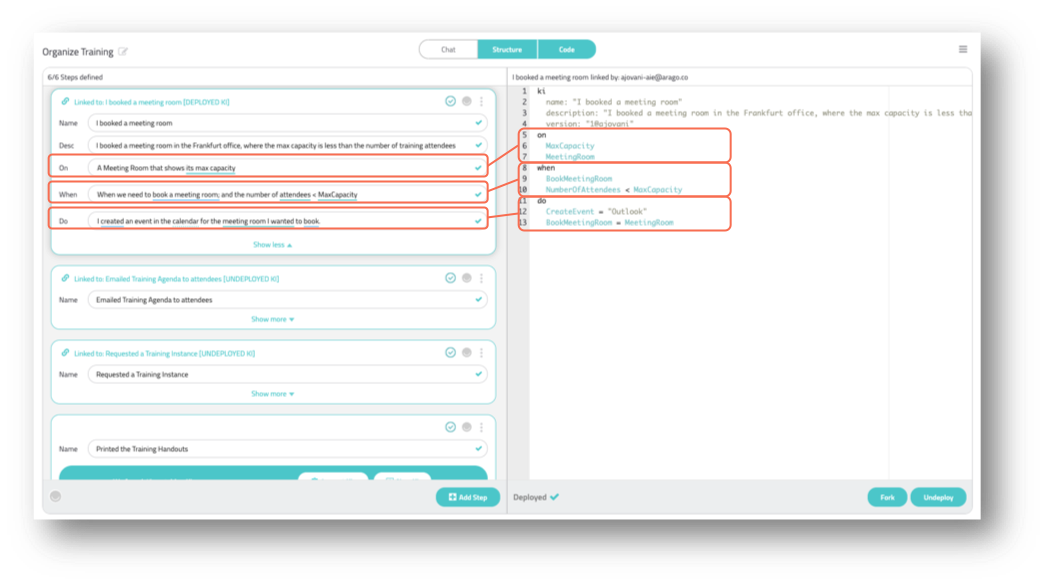
From each step Bardioc™ is trying to learn where it can apply this knowledge (in the case that there’s environment data present which limits its application), and when it can be applied, meaning what information does the task definition need to contain for this step to be carried out. Lastly, Bardioc™ tries to extract exactly what action is to be taken and how it can recreate that specific step when the time comes.
The replies the SME will give to these questions, will show up for the Knowledge Expert in the Structure view of a Teaching Session in KAT. The replies will respective fill the on, when and do section of a KI. So, it’s important for the Knowledge Expert to have in mind that descriptions provided in the on block, will determine which of the Environmental Nodes this KI is applied to. Similarly, the answers for the when block, will determine what information from the Task is needed for this KI to trigger, and the do block will show what exactly needs to be done.
4.2 Bardioc™'s Vocabulary - Variables
While describing the steps, Bardioc™ tries to map natural language to vocabulary it recognises, which consists of Variables. This mapping can be seen by the colour-coded underlining of words.
The logic behind the mapping suggestions is indicated on the screen in the form of coloured, straight and dotted underlining of the words the SME used to describe a step. Each indicator is explained below:
-
Dotted line
Bardioc™ was able to match to an existing variable -
Red line
Bardioc™ wasn’t able to understand the user input -
Blue line
Bardioc™s suggestion was overwritten by the user or a new definition was added
A Knowledge Expert needs to confirm Bardioc™'s mapping when autogenerating KIs. This can be done by clicking on underlined words and selecting an existing variable from the pre-defined list, or creating a new one by defining the variable name, a description, and an indicator if it should serve as a ToDo variable or not.
4.2.1 ToDo Variables and Task States
A ToDo Variable differs from other ["Information"] Variables as it implies an action needs to be taken. For example, ApproveOrder is an action that needs to be taken, whereas OrderApproved provides information of the status. The main function of the ToDo Variables is to indicate to Bardioc™ that something is to be done. Once the necessary steps are taken to complete an action indicated in a ToDo Variable, that Variable is then deleted. Bardioc™ will continue to process Tasks ("PROCESSING" state) for as long as there are ToDo Variables still present.
When all ToDos have been deleted the Task state changes to "RESOLVED" meaning that it has been solved fully autonomously by Bardioc™. If the existing knowledge inside Bardioc™ at a given point in time is not sufficient to carry out all necessary steps, so there are ToDo variables still left on the Task but no KI is triggering, the Task will stay in PROCESSING state. When a Task is in PROCESSING but no knowledge is being applied, Bardioc™ will wait until the Task has been idle for 900 seconds, then will automatically change its state to "STOPPED" indicating that Bardioc™ could not solve the Task autonomously and will need to be taught the missing knowledge after an SME successfully completes it manually.
4.2.2 Variable Naming Conventions
As Variables are global, and KIs are eligible to be applied to any Task, it’s good to agree on a set of rules regarding Variable and KI naming conventions. The suggested best practice can be found below:
-
ToDo Variables always start with a verb.
-
Information Variables always start with a noun.
-
CamelCase is used for Variable names (to differentiate between the two at a glance, ToDos can start with a capital letter, and information variables with lowercase).
-
Variable description should contain what the variable indicates, expected values (e.g. Variable indicates the current free memory available on a server. Expected values are in GB), and a short description on keys usage, when applicable.
-
KI Title should be consistent with its contents (double-check this at the end if forking, or copy-paste is used).
-
KI Description should summarize Applicability, Situation and Action in one or two sentences.
4.3 Bardioc™ KAT Principles
When a newly-handed-over Teaching Session begins, the Knowledge Expert, should go through it briefly, to get a view of what is being automated. Then, they would work on each Step one by one, to maximise Bardioc™'s efficiency.
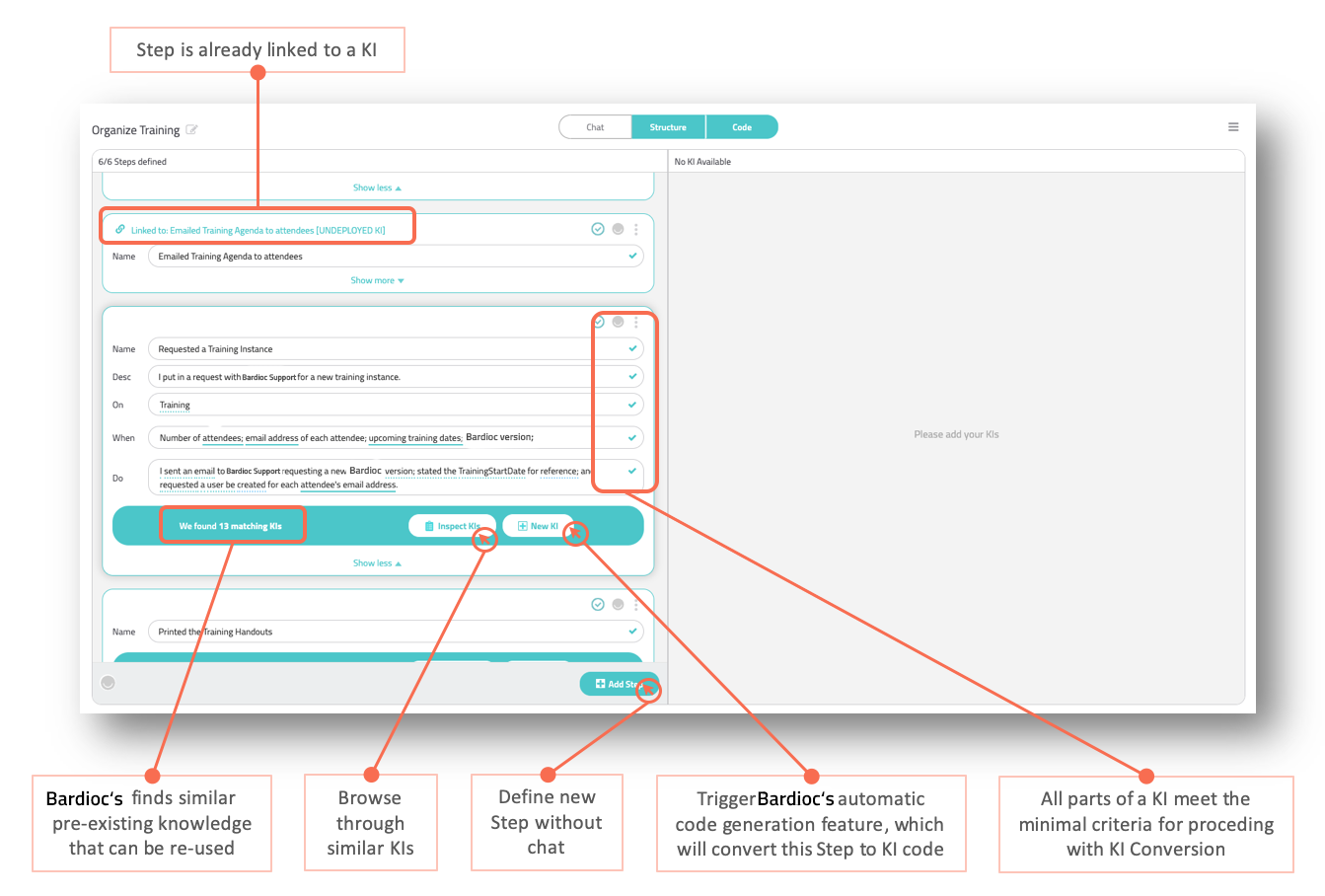
They should ensure the Step definition is clear as they will need to browse through existing knowledge that Bardioc™ has found to be eligible for reuse, or trigger the automatic code generation to create a new KI. The following principles were created to aid in this process, and to refer back to while teaching Bardioc™.
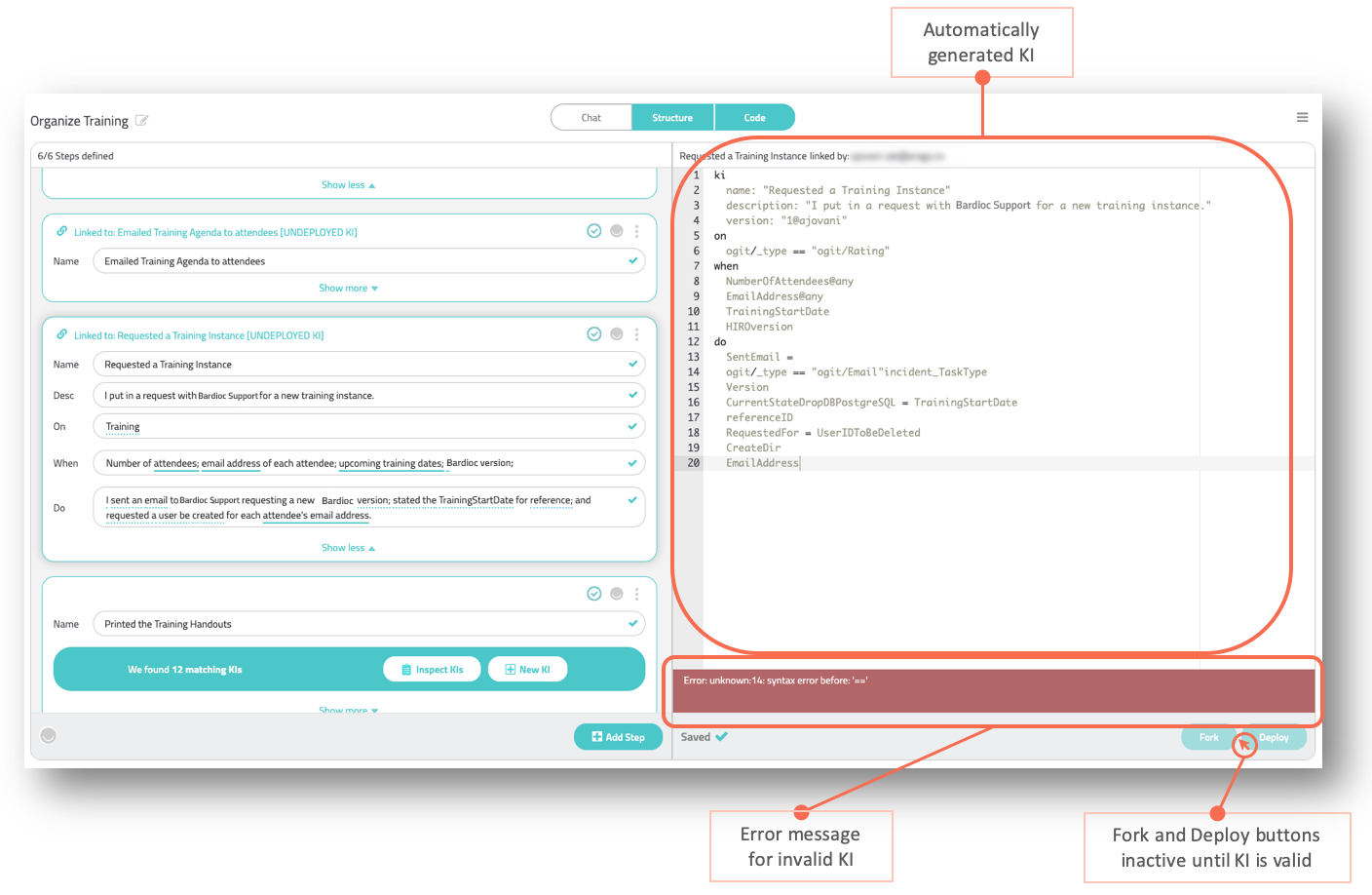
-
Variable declaration needs to be completed (wherever the SME has skipped this step)
-
No variables used for substitution in DO block without having checked for them in ON or WHEN block (This will also break the colour-coding) not entirely sure this was just for Substitution, for example, it didn’t like ogit/Schedule/Calendar == something either
-
Try to understand KI description as a whole (logically, what is the SME trying to teach Bardioc™ to do? Have a clear answer for this, and don’t let the Variable suggestions sway you)
-
When there are suggested KI, always inspect those first to see if 1 could be reused for this same purpose
-
Only if none can be reused, create a new KI

5. Logic of KI Writing
5.1 What are KIs
Bardioc™ automates using Knowledge Items (KIs), which are atomic representations of Steps that are taught to Bardioc™ by an SME. Once added to the pool, KIs can be re-combined with existing knowledge inside Bardioc™ to form automated solutions of similar Tasks. The SME input will be given through a chat conversation with Bardioc™ Chatbot, and Bardioc™ then can convert this knowledge into KIs.
An Knowledge Expert will review SME input, and ensure that Bardioc™'s given the right amount of detail and context in order to get the best results from its automatic code generation feature.
The SME will sometimes use words that are not yet in Bardioc™'s Vocabulary, in which case they can extend this by defining a new Variable. If an SME skips Variable definition, or matching of existing Variables, it falls on the Knowledge Expert to map the natural language to Variables using the context provided in the chat. Once all the necessary Variables are defined, Bardioc™ has a basis for the conversion.
5.2 What are Nodes
Knowledge Items contain information on where and when they can be applied. In practice, this means each KI contains conditions that need to be met by the Environment, and others that should be met by the Task. Bardioc™ begins automation with a pre-existing environment, in the form of a graph.
This graph will typically contain representations of factual knowledge which are relevant to the field of automation. Single instances of these representations are called Nodes. This information is inserted into Bardioc™ at the time of Integration, and it is a form of enabling Bardioc™ to understand the context in which it’s being taught, and providing it with the means of running actions on said Nodes.
Each Node describes a part of the environment using Variables, which is Bardioc™'s existing Vocabulary. These Variables can be read by a Knowledge Item, which is what happens at the time that a new KI is inserted into Bardioc™. The ON block of a KI will contain conditions which the Variables of existing Nodes need to match. For each match, the Knowledge Item is made available for use, on that Node. What this means is that Knowledge "sits" on Environment Nodes, and is idle until a Task occurs.
5.3 What are Tasks
Tasks are a list of attributes that describe the situation at a given point in time. Tasks will always originate on an Environment Node, indicating that a certain task or process, likely affecting that Node, needs to be carried out. As soon as a Task is created, Bardioc™ will check all of the KIs available on the Node it originated on, and will trigger the one(s) whose WHEN conditions are met by the specific Tasks.
5.4 Intro to KI Syntax
KI Syntax is a formalization language for knowledge around automating processes. It is the basis for the Knowledge Items (KI).
The assumption is, the system will have access to the same information as any (privileged) user and needs to be taught how to interact with the data in order to solve Tasks. KI Syntax 6.0 describes logic that processes/gathers/generates data in a certain way to contribute to the overall problem solution. This logic is stored in the Knowledge Items. Bardioc™ Engine applies Knowledge Items to its tasks.
Application of Knowledge Items works by matching data to KIs that call for these conditions and associating each KI to these data points. This is called "binding". At any time many Knowledge Items can be "bound" to the same data.
A Task includes the current state of data gathered/generated for this Task and the history of steps and changes made to the data during processing.
A very simplified Task could look something like this:
{
 "/Subject": "MyTestTask",
 "/MyVariable": ["FirstValue", "SecondValue"]
 "ogit/Automation/originNode": "pzcxyhawulkadasnwascxzy"
}
While KI Syntax 6.0 borrows heavily from common programming language features like string expansion or comparison operators, it should not be confused with a programming language. KI Syntax 6.0 purposefully does not natively support creation of large monolithic algorithms. The goal is to write atomised bits of knowledge that can be freely strung together by their inputs and outputs and are as re-usable for as many use cases as possible.
5.4.1 Functions vs Definitions
The core information is grouped in the Functions and Definitions parts. The Definitions section contains information on concepts such as aliases, scoping, data values etc. The most important section here is the “Matching variables and values”, where we see all the syntax necessary for variable matching. This is how a KI would communicate criteria, which means these are only used in the ON or WHEN blocks of Knowledge Items.
The Functions dropdown contains information on how Bardioc can carry out actions on target systems. This will be information primarily used in the DO section of a KI. Functions require arguments which are either unnamed ordered (positional) or named (keyword), depending on the function.

The function results are returned as tagged values, and matched to variables using the syntax:
<tag>: <var>,
<tag2>: <var2> [...] = function(...)
The full list of implemented functions can be found in KI Syntax.