Bardioc User Guides

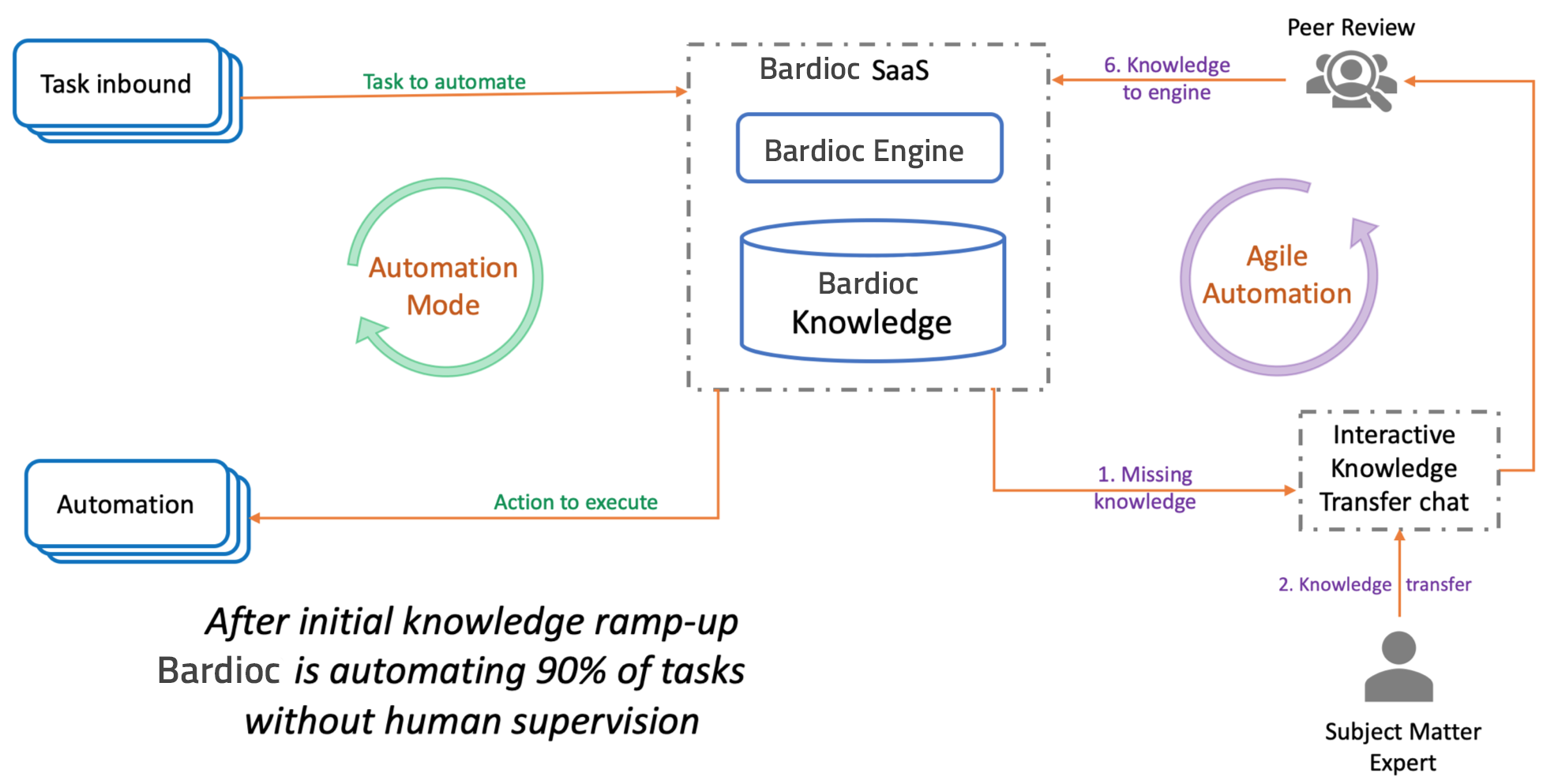
Table of Contents
This guide contains all the essential information for Admins to operate Bardioc™ effectively for best results.
1. The Big Picture
Bardioc™ is an automation tool based on artificial intelligence, created by Almato. It can be used to automate both IT and business processes, enabling companies to utilise time and resources effectively.
1.1 Bardioc™ Modes
Bardioc™ is always working in the background, whether that be carrying out tasks, or learning new ones. This can be seen in the two modes Bardioc™ works in:
- The Automatic Execution Mode
-
Bardioc™ solves tasks automatically by applying pre-existing knowledge.
- The Agile Automation Mode
-
Bardioc™ gets taught new knowledge to automate new tasks in an agile manner.
1.2 The Workflow
Primarily, Bardioc™ needs to understand the environment that it will automate in, including which tasks can occur there. These can both be extended as the scope grows, but to start off one should select an end to end process to automate, and define which tasks can occur there and their triggers.
Triggers will be defined for each problem type, and an Automation Task will be created in Bardioc™ every time a trigger is detected. In the Automatic Execution Mode, Bardioc™ tries to solve each task by applying existing knowledge that it will have been taught previously.
If the knowledge present is not sufficient for a specific task, Bardioc™ will request to be taught new knowledge in the Agile Automation Mode, so that it can solve the task automatically the next time a similar trigger occurs.
1.3 User Roles
Automating with Bardioc™ entails indirectly collaborating with various team members that will each use Bardioc™ differently. For this purpose, Almato has created some User Roles to better separate responsibilities, processes for hand-over, and allow for the user interface and training content to be better catered to each role.
1.3.1 Business Analyst (BA)
Solution Design is carried out by a Business Analyst who is familiar with the business process, and understands how Bardioc™ works. They design how all components will work together and what is to be developed.
1.3.2 Bardioc™ Developer (Dev)
A Bardioc™ Developer is responsible for creating and configuring the Action Handlers and Connectors planned in the Solution Design phase. They are familiar with the source and target systems, and the available Bardioc™ APIs.
1.3.3 Subject Matter Expert (SME)
Experts who will teach Bardioc how to automate processes they are knowledgeable on through a chat conversation where they answer some questions regarding said processes and tasks within them.
1.3.4 Knowledge Expert (KE)
This role will be given to users who understand how Bardioc works, and can edit Bardioc’s automatically generated code to ensure it has translated content from an SME’s chat conversation correctly into KIs.
1.3.5 Admin
This role will be given to users who understand how Bardioc works, permissions required for each user, and how to configure this using Bardioc™ User Interface.
1.4 Where Do I Fit In
Bardioc™ is taught new knowledge during task automation by a combination of two different types of users - the Subject Matter Experts (SMEs) and the Knowledge Experts (KEs). For this to happen smoothly each user role has different permissions and ways of interacting with Bardioc™. SME’s should be able to see the Tasks that are relevant to them and their team; whereas AI Experts will need to see completed Teaching Sessions that are handed over by SMEs after knowledge transfer.
2. Bardioc™ Tools for Admins
2.1 User management with Almato ID
User Self-registration
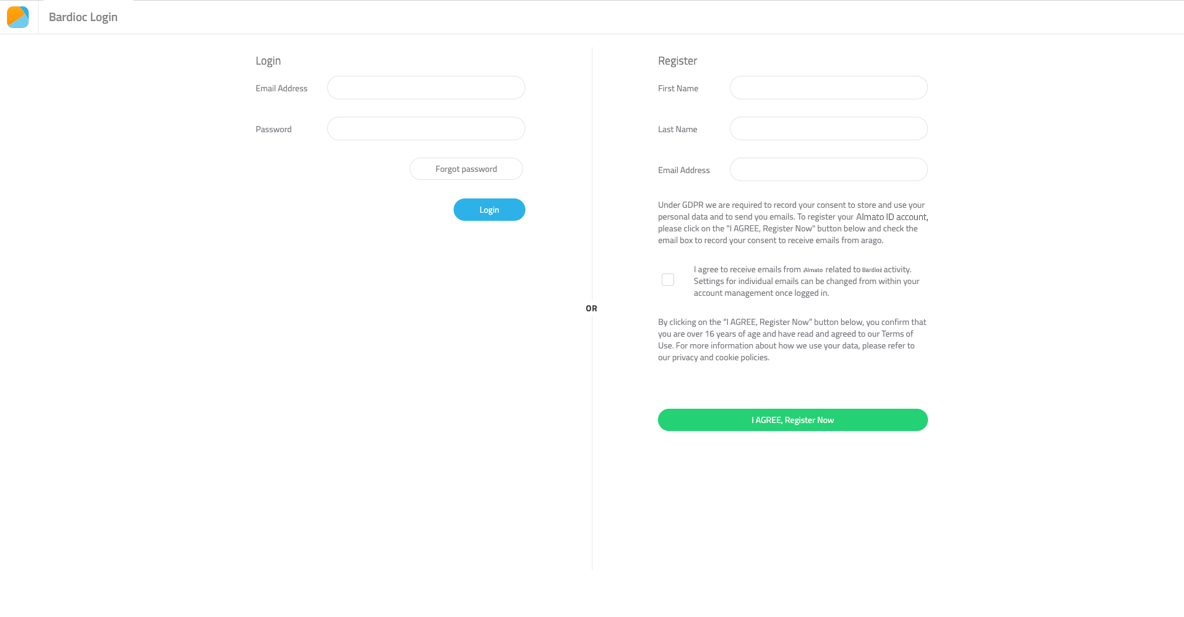
In order to use Bardioc 7, a user must first register at id.almato.com. on the registration page. Here the user needs to use an email address from the organization which is granting them access to the Bardioc instance. For example, Sarah at almato.com wants to register at id.almato.com.
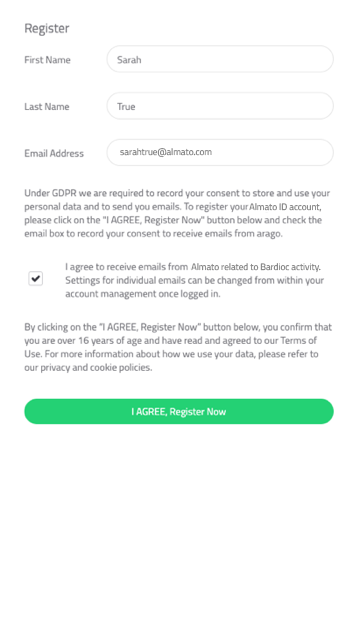
To create a user, Sarah has filled in the fields found on the right-hand side of the screen. First Name, Last Name, and Email Address are the minimum requirements to proceed. She can opt in to receiving emails from Almato regarding Bardioc activity, by ticking the checkbox below the fields. When these are filled in, Sarah presses the “I AGREE, Register Now” button, and waits for her registration email.
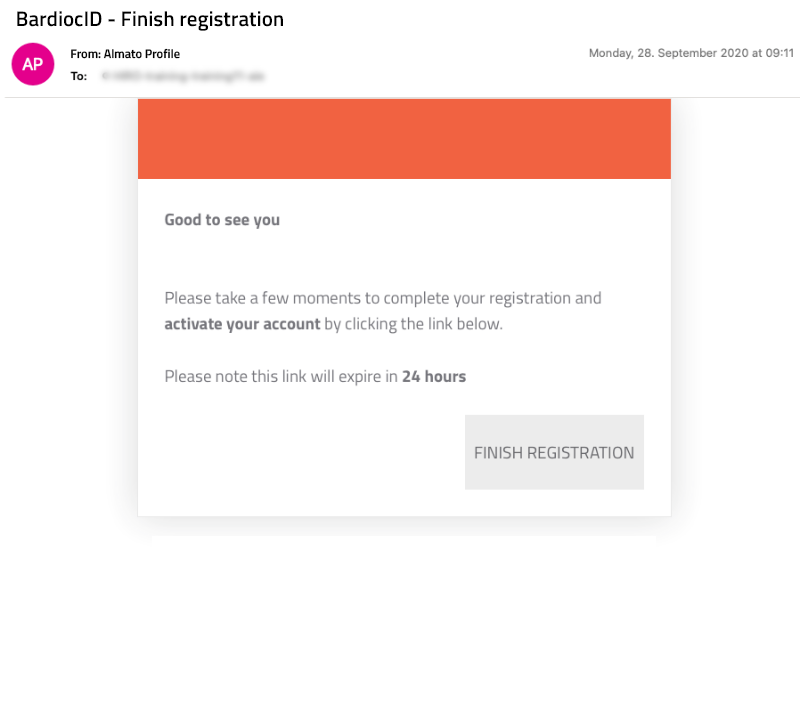
A registration email should arrive shortly after clicking the Register Now button. If you can’t see this in your inbox, please make sure to also check the junk folder, as this may sometimes be incorrectly categorized as spam. It’s important to do this promptly as the email will contain a link that expires 24 hours after it’s received. The link is found on the bottom right with a “FINISH REGISTRATION” button and this will take Sarah to the screen where she can create a password for her new Almato ID user account and add a picture to customize.
How access is granted for a Bardioc 7 instance
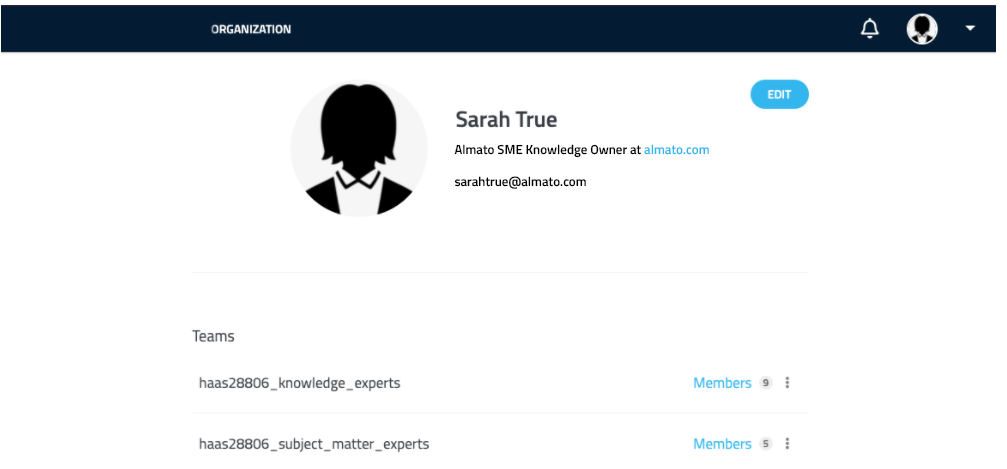
Each Bardioc 7 instance has its own so called “haas-id”. In the example below, Sarah is a member of the teams “knowledge experts” and “subject matter experts” for the instance haas28806. She can access this instance by logging on to desktop.bardioc.almato.com. Bardioc 7 instances are created by Almato, user management can be done by any organisation administrator (Almato will assign one client administrator to begin with).
Assigning members to teams
To assign a member of your organisation to a team, simply navigate to the teams tab and start searching for the team member. Keep in mind that only administrators have the privilege to do this. You can find out who is administrator by looking at the member list of the team admin. The administrator can add additional administrators.
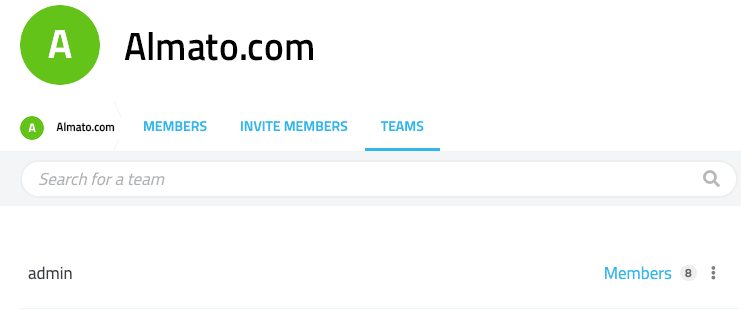
In the example below, we are adding Daniel to the knowledge_experts team.
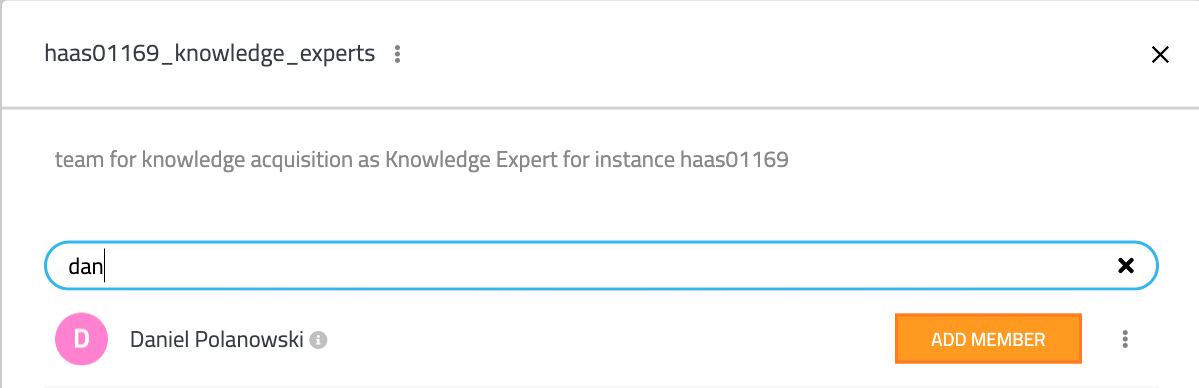
Once assigned you can find Daniel in the list of members. At any time you can remove a member by clicking on the three dots (see example below)

Inviting members
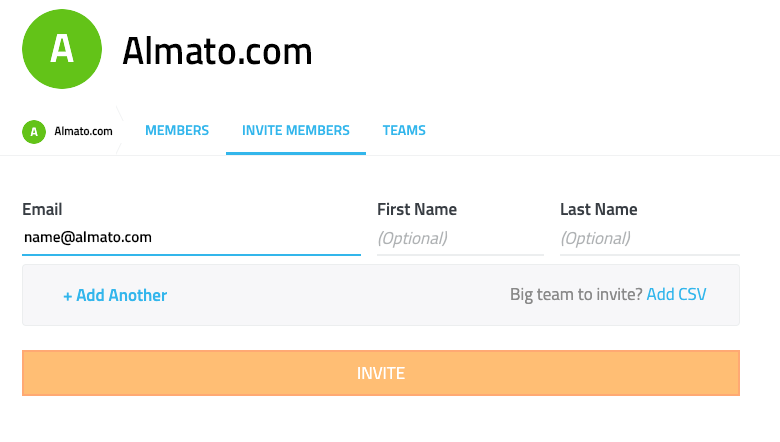
As mentioned above, having an account created on id.almato.com is mandatory to get access to a Bardioc 7 instance. The invite members tab allows you to invite new members by providing their company email and as a batch upload using a csv file. Every invited user will be sent an email with an account registration link they must follow to activate their profile.